
How to Free Up Disk Space on Windows: A Practical Guide
The fastest way to free up disk space on Windows is to work from the biggest wins down: find what is actually using the space, clear temporary and system files with the built-in tools, then remove or move the large items such as old games, backups and unused apps. Our disk cleaner, Klenso, is a selective cleaner that scans before it deletes anything, so you see what will go before it goes.
This guide walks through each step in order, shows what each one typically saves, and explains which files you can remove safely.
TL;DR
- Start with Settings > System > Storage to see what is using your drive, then turn on Storage Sense so temporary files and Recycle Bin items clear automatically.
- Run Disk Cleanup and choose “Clean up system files” for the extra items, such as Windows Update leftovers and the old Windows folder.
- The big savings usually come from large personal files, old backups and games, not from temporary files.
- Deleting a file only moves it to the Recycle Bin, so empty it afterwards.
- Pick a cleaner that scans first and lets you choose what goes, so nothing is removed without your say.
Table of Contents
- Step 1: See where the space has gone
- Step 2: Turn on Storage Sense
- Step 3: Run Disk Cleanup, then the system files option
- Step 4: Empty the Recycle Bin
- Step 5: Deal with the big items
- Step 6: Shrink Windows itself (optional)
- What is safe to delete, and what to leave alone
- Does freeing space make your PC faster?
- A cleaner that shows you before it deletes
- A simple routine to keep space free
- FAQ
- Sources
Step 1: See where the space has gone
Before deleting anything, look at what is using the drive. Open Settings > System > Storage. Windows breaks the drive into categories such as apps, temporary files, documents and pictures. The Verge’s Windows storage guide explains this view and adds a useful trick: in File Explorer, open a folder, choose Sort > More > Size, and the largest files rise to the top.
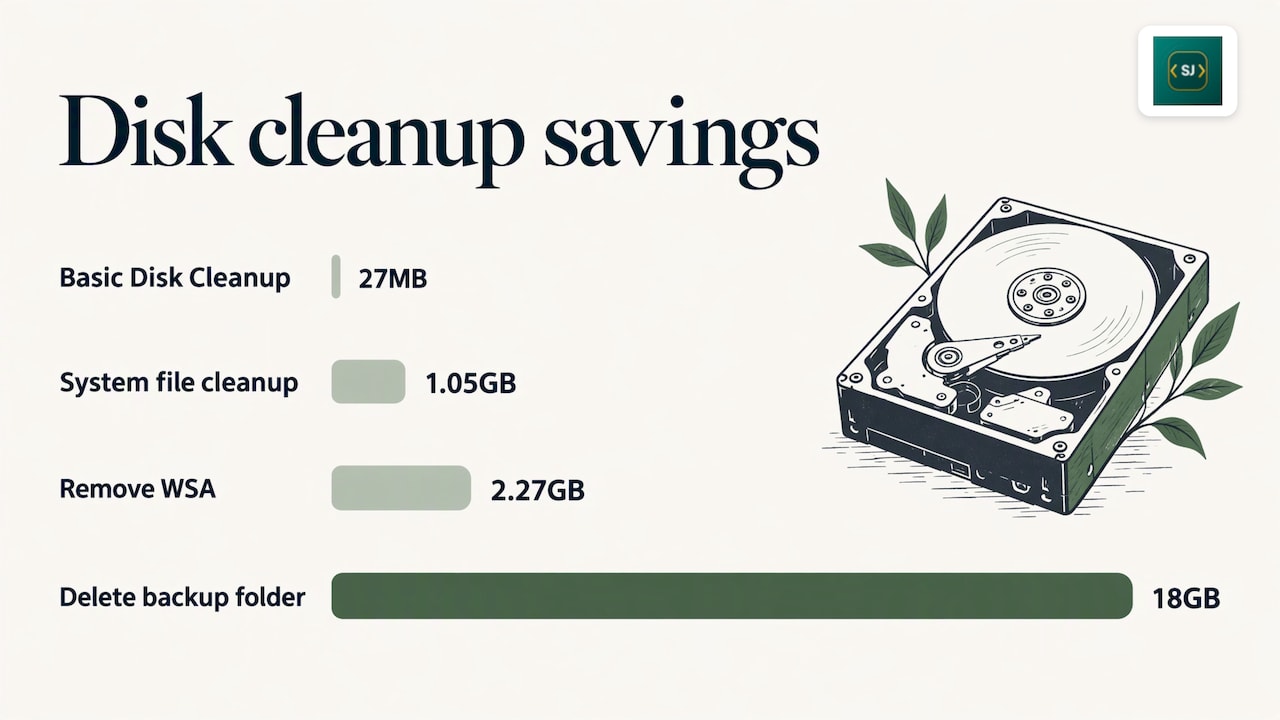
This matters because the savings are very uneven. In Tom’s Hardware’s measured test, basic Disk Cleanup freed 27MB, “Clean up system files” freed 1.05GB, removing the Windows Subsystem for Android freed 2.27GB, and deleting one forgotten backup folder freed 18GB. The same article notes that some modern games use more than 100GB. One large item beats a hundred small ones, so find the large item first.
A free-space map tool, which draws your folders as blocks sized by how much they hold, makes large folders easy to spot. If you prefer a single tool that scans and lists what it finds before it removes anything, that is how Klenso works, covered below.
Step 2: Turn on Storage Sense
Storage Sense is the built-in housekeeper. According to Microsoft’s Storage Sense documentation, it runs by default when the device is low on disk space and does not touch your Downloads folder or OneDrive files unless you configure it to. You can switch it on and set a schedule under Settings > System > Storage.
Two details are worth knowing:
- It works on the system drive, usually C:. For other drives, Microsoft points you to Settings > System > Storage > Advanced storage settings > Storage used on other drives.
- Its Cleanup recommendations page lets you review and delete temporary files, large or unused files, files synced to the cloud and unused apps, as described in Microsoft’s drive space guide.
Step 3: Run Disk Cleanup, then the system files option
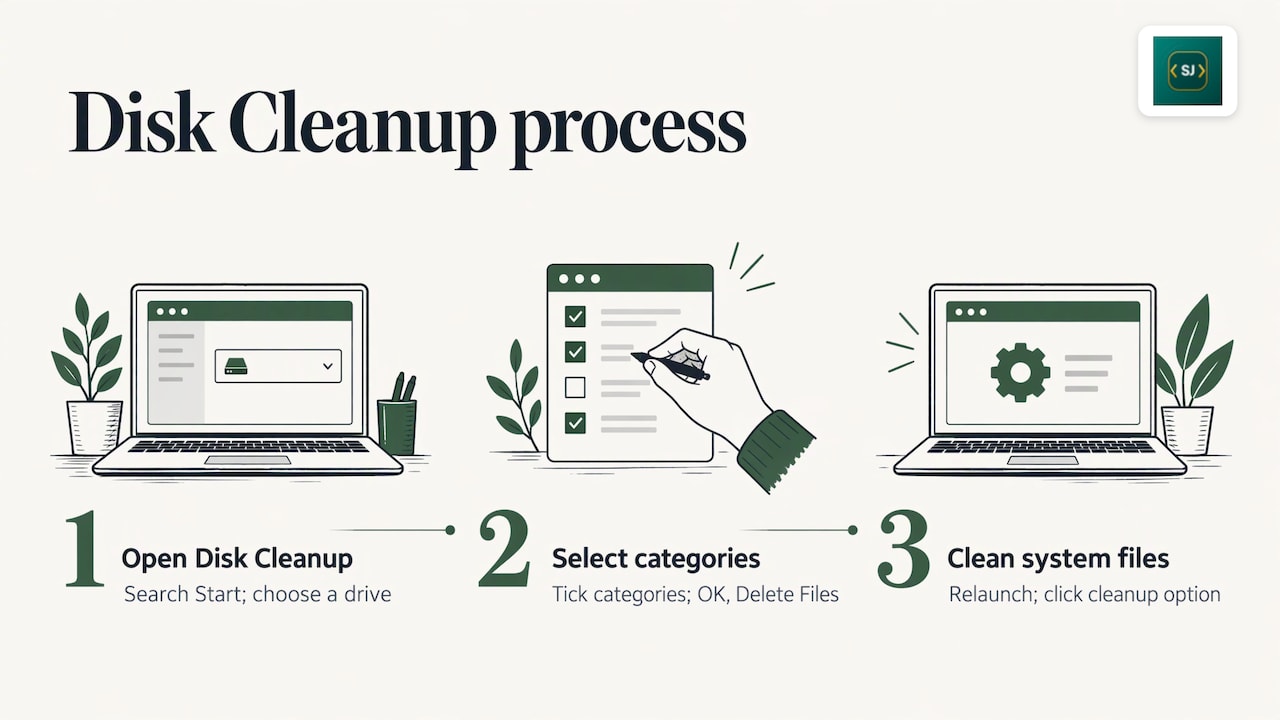
Disk Cleanup is still in Windows. Search for it in the Start menu, pick your drive, tick the categories you want and choose OK, then Delete Files. Microsoft’s cleanmgr documentation lists what it can remove: temporary setup files, downloaded program files, temporary internet files, old Chkdsk files, Recycle Bin contents and Content Indexer catalog files. It also says temporary files not modified in the last week can be deleted safely.
Then relaunch it and click “Clean up system files”. TechTarget’s March 2026 guide explains that this runs the tool with administrator privileges and reveals more items, such as system minidump files, Windows Update logs and the Windows.old folder, which can take up a lot of space.
Windows.old: the one to think about first
Windows.old holds your previous Windows version so you can roll back after an upgrade. Microsoft notes that deleting it is irreversible and removes your ability to go back. If your upgrade is working well and you have no plans to roll back, it is a good candidate. If you only upgraded recently and are unsure, keep it a little longer.
Windows Update Cleanup
MakeUseOf’s guide says Windows Update Cleanup files are safe to delete in most cases, but you should keep them while you are troubleshooting update problems. Unused language resource files and temporary files can also go.
Step 4: Empty the Recycle Bin
This sounds obvious, but it catches many people. TechTarget notes that deleting a file only moves it to the Recycle Bin, where it keeps using space until it is permanently removed. After clearing out large files, empty the bin, or let Storage Sense do it on a schedule.
Step 5: Deal with the big items
This is where most of the space comes back.
- Uninstall apps and games you no longer use. Go to Settings > Apps > Installed apps and sort by size. For Steam games, The Verge describes right-clicking the title in the Library pane and choosing Manage > Uninstall.
- Move personal files off the drive. Microsoft suggests moving videos, music and photos to external storage such as a USB drive or SD card.
- Use OneDrive Files On-Demand. Per Microsoft, it keeps a small placeholder on your drive instead of the full file, so you can still see and open files without all of them sitting locally.
- Hunt down old backups and installers. Forgotten backup folders and downloaded setup files are classic hidden space users, as the 18GB example above shows.
Step 6: Shrink Windows itself (optional)
If you are still short, there are system-level tweaks. PCWorld’s September 2025 article reports that Windows often occupies more than 25GB for updates, restore points and cache files. It says the command “compact /compactOS:always” can save 2 to 6GB and can be reversed with “compact /compactOS:never”, and that “powercfg -h off” removes the hibernation file, saving up to 4GB. Turning hibernation off means hibernate and Fast Startup are no longer available.
The same article warns that removing system components too aggressively can make Windows unstable, so create a restore point and back up before you try these. Windows Central also covers NTFS compression and Compact OS for Windows 11.
If you suspect malware is eating space, Microsoft recommends running Windows Security, since a virus can use significant space by corrupting system files.
What is safe to delete, and what to leave alone
| Usually safe | Think first | Leave alone |
|---|---|---|
| Temporary files, Recycle Bin, temporary internet files | Windows.old, Windows Update Cleanup, Downloads folder | System folders such as Windows and Program Files |
| Thumbnails, delivery optimisation files | Large files you have not opened in a while | Files you do not recognise inside system folders |
The rule of thumb: delete things you can name and that you know you can recreate or no longer need. If you cannot tell what a file is, do not delete it by hand. Use a tool that describes it.
Does freeing space make your PC faster?
Not always. XDA Developers points out that cached files exist to speed up repeated loading, so clearing them saves space but can make the next load slightly slower. Clear caches when you need the room, and for speed, uninstall programs you do not use and trim startup entries. Free space does matter for Windows updates and for the drive to work comfortably, so a nearly full drive is worth fixing.
A cleaner that shows you before it deletes
The built-in tools cover the basics. What many people want on top is one place to see junk files, choose what to remove and stay in control. Klenso is our selective disk cleaner for Windows: it scans first, so you review what it found before anything is deleted.
The studio behind it is independent and based in Western Australia. Each app has its own page and a plain-English privacy policy, with prices, terms and refund information shown alongside the app, and you can contact the developer, Randeep Singh, directly with questions.

You can see Klenso and the other apps on the Sardar Ji Developers site.
A simple routine to keep space free
- Check Settings > System > Storage once a month.
- Leave Storage Sense on.
- After a big project or game, remove what you no longer need and empty the Recycle Bin.
- Once or twice a year, run Disk Cleanup with system files and review large folders.
- Keep personal files you rarely use on external storage or in the cloud.
FAQ
How do I free up disk space on a computer?
Open Settings > System > Storage, turn on Storage Sense and review Cleanup recommendations. Then uninstall unused apps, move large personal files to external storage and empty the Recycle Bin. Large files and old backups usually give the biggest gain.
What should I never delete on my PC?
Do not manually delete files inside the Windows or Program Files folders, or files you cannot identify. Stick to temporary files, the Recycle Bin, update leftovers you no longer need and your own files. When in doubt, use a tool that lists and describes items first.
Can I trust Disk Cleanup?
Yes, it is a Microsoft tool and its categories are documented. Read the list before you tick items, and be careful with Windows.old, because deleting it removes your ability to roll back to the previous Windows version.
Does clearing storage make a PC faster?
Only in some cases. Cleared caches get rebuilt, so the gain is mostly space. Uninstalling unused programs and trimming startup items does more for speed, while enough free space keeps updates and everyday use running smoothly.
Sources
- Free up drive space in Windows | Microsoft Support
- Manage drive space with Storage Sense | Microsoft Support
- cleanmgr | Microsoft Learn
- 11 ways to increase free disk space in Windows 11 or 10 | Tom’s Hardware
- 10 ways to free up disk space in Windows | TechTarget
- How to free up space on a Windows PC | The Verge
- 12 tweaks to make your Windows PC lean, mean, and fast | PCWorld
- How to free up disk space on Windows 11 | Windows Central
- Delete These Windows Files and Folders to Free Up Disk Space | MakeUseOf
- 5 reasons you should avoid PC cleaning apps | XDA Developers